

I recently saw a LinkedIn post offering a “free accessibility widget” as a shortcut for business owners. It’s a common trend, but if you really want to know how to improve website user experience (UX), you have to look beyond a plugin.
I get why they’re tempting—it’s a one-click “fix.” But these widgets are essentially a floating button that quietly says, “We didn’t build this right,” and then dumps the responsibility back onto the user.
Good UX and accessibility should be baked into the foundation, not glued on afterward like an apology.
A widget can’t fix bad structure or messy code. Best case? It adds surface-level tweaks. Worst case? It creates a “false sense of compliance” while actively interfering with the tools—like screen readers—that people with disabilities already use.
If your site needs a widget just to be usable, the problem isn’t a missing plugin. It’s the build.
6 Manual Fixes That Actually Matter
Instead of a plugin, focus on these fundamental pillars of inclusive design to genuinely improve website user experience (UX):
-
Logical Heading Structure: Think of your headers like a book’s Table of Contents. You should have one main title (H1), followed by logical sub-sections (H2, H3). Don’t jump from a giant heading to a tiny one just for the “look”—it confuses people using assistive technology.
-
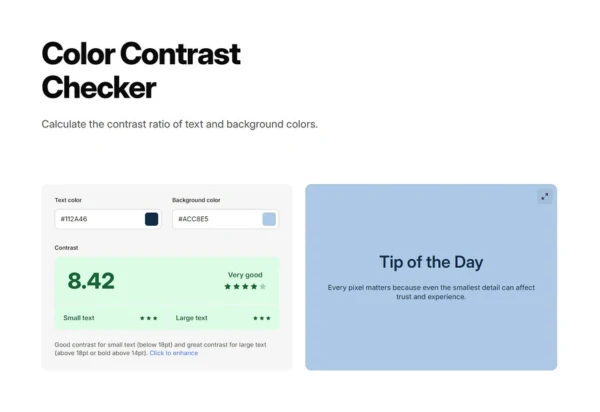
High-Contrast Colors: If your text is light grey on a white background, people will struggle to read it—especially in bright sunlight or on older screens. Make sure your text “pops” against the background.
Quick Tool: Use the Coolors Contrast Checker to see if your colors are easy on the eyes.
-
Meaningful Alt Text: Describe images as if you’re talking to someone over the phone.
-
Bad: “image123.jpg” or “marketing photo.”
-
Good: “A designer sketching a wireframe on a tablet next to a steaming cup of coffee.”
-
Note: If an image is purely decorative, it should be marked as “null” so the system knows to skip it.
-
-
The “Keyboard Test”: Put your mouse away and try to navigate your site using only the
Tabkey. If you can’t tell which button you’re currently on, or if you get “stuck” in a menu, your site is a guessing game. -
Clear Link Text: “Click here” tells nobody anything. Use descriptive labels like “Download our 2024 Guide” or “View our Services” so users know exactly where they are going.
-
Proper Form Labels: Don’t rely on that faint grey text inside the box that disappears when you start typing. Make sure every box has a permanent title above or beside it so people don’t lose their place mid-sentence.
The Bottom Line
Widgets sell well because “instant install” sounds easier than “doing the work.” But accessibility isn’t a plugin you toggle on; it’s part of good design.
Build it right the first time. Your users (and your SEO) will thank you.
Is your site actually helping your customers—or getting in their way?
A widget might give you a checkmark, but a professional audit gives you a better website. I help businesses find the “invisible” barriers on their sites and fix them for good.